
Hours are logged and submitted by period, managers approve team timesheets in one place, and the data sits on the same platform where projects and finance already live.
week of Oct 5
in one click
no re-keying
Timesheet trouble usually starts with timing. People fill in a whole week on Friday afternoon, or a month on its last day, working from memory and a calendar. The totals look plausible, but the detail is guesswork, and guesswork is hard to bill a client from or to defend when someone queries their overtime. Then the late timesheets need chasing by hand.
The second problem is approval without meaning. When managers receive a pile of timesheets at the deadline, approving them all is the quickest option, and that approval tells finance nothing. The errors surface later, usually when a client queries an invoice.
Employees record time against the period.
One click sends the timesheet for approval.
Managers review and approve the whole team at once.
Approved hours feed payroll and reporting.
Employees record, managers decide against a clear standard, the system does the reminding, and approved periods stay fixed.
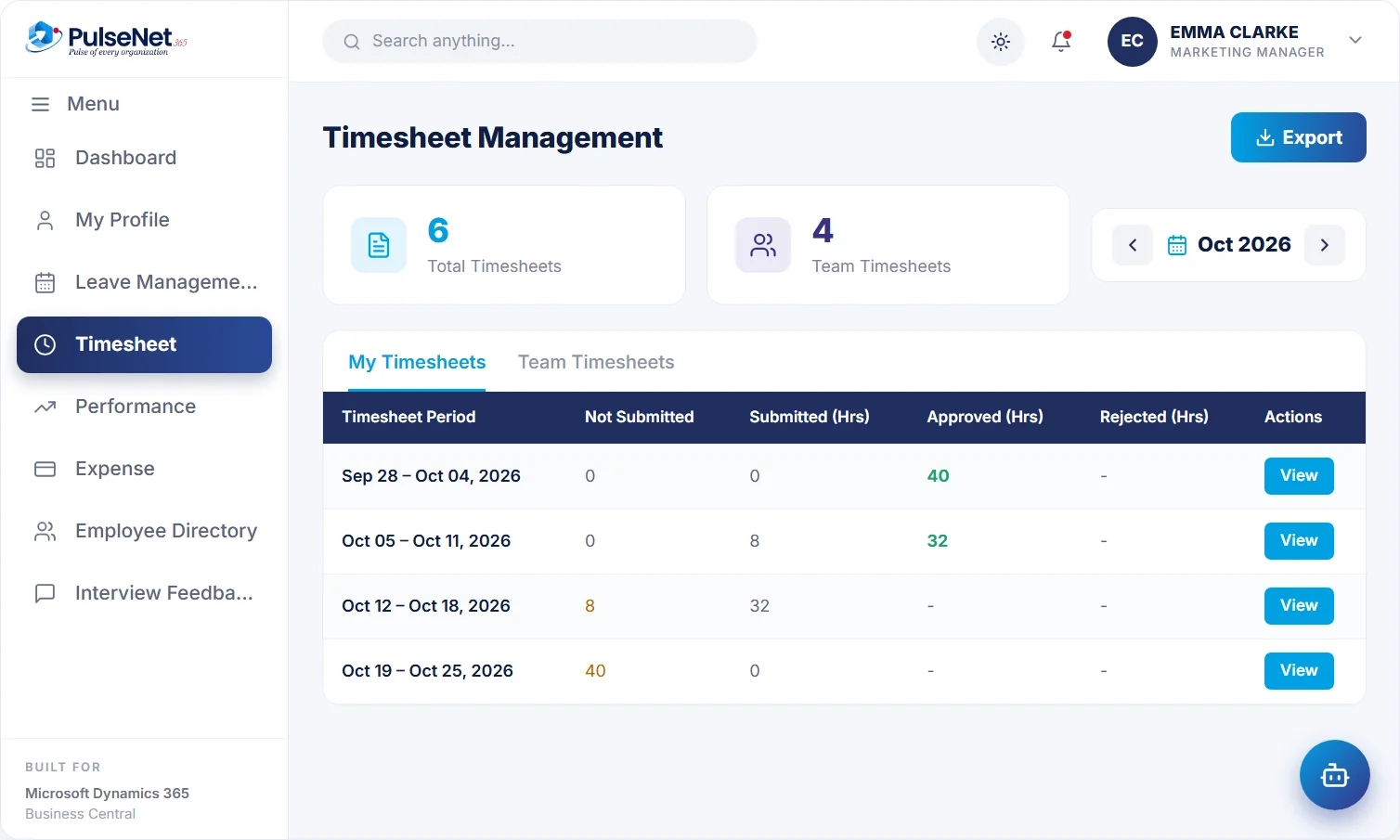
Employees record hours against a week or another agreed period in self-service, ideally daily while the detail is fresh. Approved leave already appears as an entry, so people only record the time they actually worked. The status of each timesheet is always clear to the employee and the manager alike: not submitted, submitted or approved.
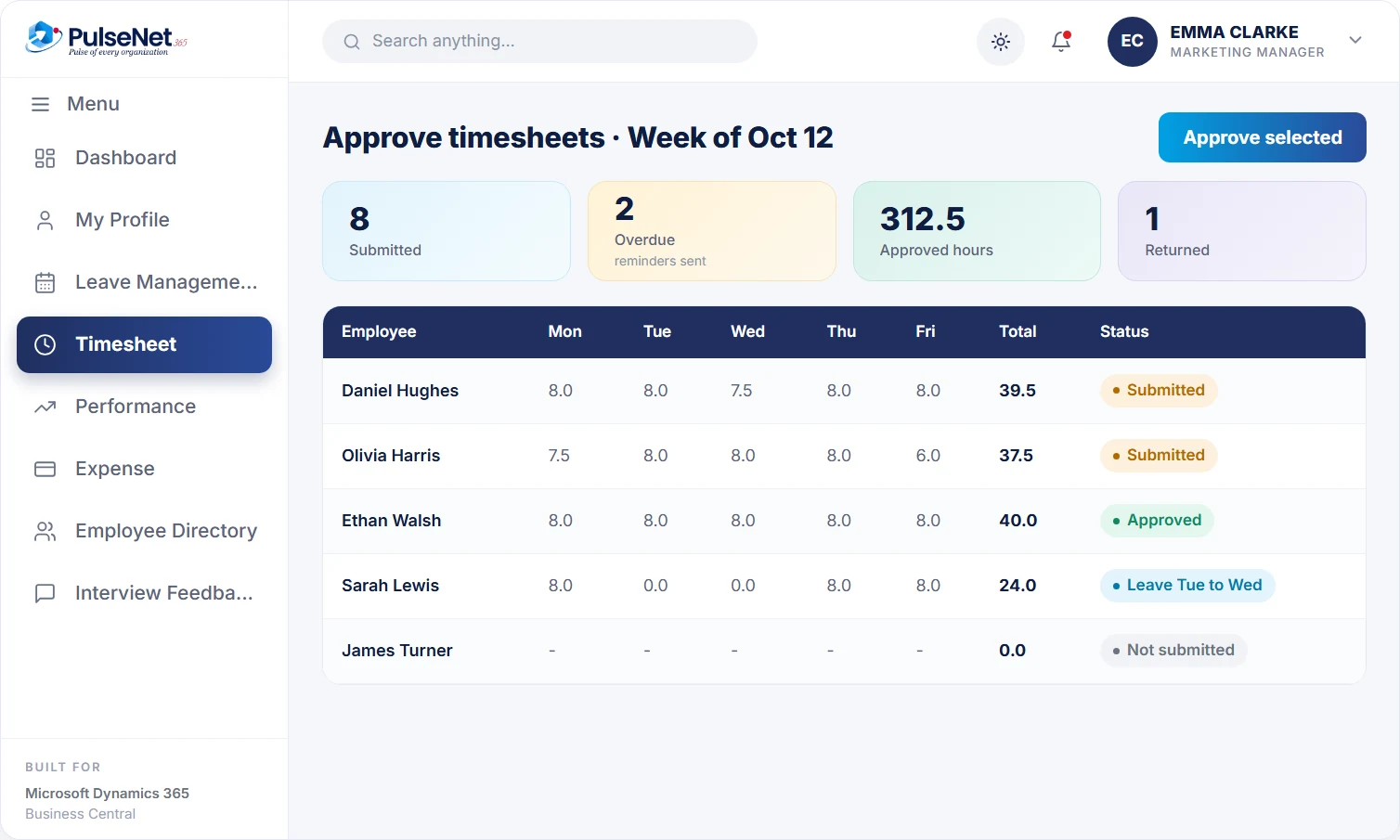
Managers review the team's submitted timesheets in one place and approve them, or reject them with a comment that goes back to the employee. A rejection explains exactly what to fix, such as a missing day or an unexplained long shift, so the resubmission is right first time rather than bouncing back and forth all week.
Anyone with an overdue timesheet gets a reminder, and so does a manager with timesheets waiting for a decision. HR and finance stop sending the Friday afternoon email in capital letters, and the reminder goes to the person who can actually fix the gap. Where one team needs a different rule, Power Automate can extend the standard flow.
Once a timesheet is approved, it locks. Finance and payroll can rely on approved hours not changing after the fact, and any correction becomes a visible, deliberate step rather than a quiet edit. That matters most when hours are billed to clients or feed overtime payments, and it gives auditors a clear answer about which figures were approved.
Record time as they go, see which periods are submitted or approved, and never enter a day of approved leave twice. A rejected timesheet comes back with a comment explaining what to change, rather than a request to call finance.
See every submitted timesheet for the team in one place, approve the complete ones and send the rest back with a comment. Because approved leave is already filled in, the manager is checking worked hours, not cross-referencing the holiday calendar line by line.
Sees who is behind, lets reminders do the chasing and has a locked record of approved hours when an overtime or working-time question comes up. Leave and time come from the same employee record, so the two never tell different stories.
Works only from approved, locked hours for billing, cost allocation and the payroll-ready data sent to the provider. Because timesheets sit on Business Central alongside the ledgers, finance analyses them with the tools it already uses instead of importing yet another export.
Business Central already has time sheets for resources, typically used to record hours against projects, with an owner and an approver for each resource. They are designed for project costing. PulseNet365 adds what HR and line managers need on the same platform: timesheets by period through self-service, reminders for overdue submissions, approval with comments, locking on approval and leave entries created automatically. Where your licence includes Copilot in Business Central, you can filter and summarise timesheet lists in plain language, and Power BI can report on the same data.
Ask people to spend a moment at the end of each day on their hours and submit once a week. A short daily entry is easier to write and far easier to approve than a week reconstructed from a calendar on Friday afternoon.
Agree what a manager is confirming: the hours are complete for the period, recorded against the right work, and anything unusual has a note. Put it in one line in the approver guide. An approval that means something is the only kind finance can bill from.
If invoices go out on the third working day, timesheets need approving by the end of the second. Publish the cut-off dates for the whole year, put them in calendars and keep to them. Predictable deadlines do more than any number of extra reminders.
Not quietly. Approved timesheets lock, so figures finance and payroll have relied on cannot be edited after the fact. If a genuine error is found, the employee raises it with the approving manager or HR. How corrections after approval are handled is agreed during configuration, to match your payroll and billing rules.
Yes. When a manager approves leave in Leave and Absence, PulseNet365 creates the matching timesheet entry and updates the balance. The employee does not record the absence twice, and finance does not have to check the leave calendar against timesheets before closing the period.
PulseNet365 records hours through timesheets submitted by period and approved by managers. If you rely on physical clocking terminals or detailed shift rosters, bring that requirement to a demo, and we will show you how that data would reach the timesheet on Business Central and where the limits are.
Approved hours, including any overtime your timesheets record, are prepared with approved leave and expenses for your payroll provider through payroll integration. PulseNet365 does not calculate pay or overtime rates; your provider applies them. Because timesheets lock on approval, the hours sent are the hours the manager approved.
If your Business Central licence includes Copilot, you can ask about timesheet lists in plain language and Copilot turns the question into filters, or use Analyze data in lists to group and summarise hours by team or period. For regular dashboards, Power BI works on the same data.
Every module shares the same employee record on Business Central, so adding another one adds no integration work.
Instant balances, 1-click approvals.
Payroll-ready data, no re-keying.
Goals, reviews and 360 feedback.
Bring your Business Central setup and the process that costs you the most time. We will show you Time & Attendance on the platform you already run.
Tell us where to send the invite. We’ll show it with your processes in mind.